Welcome back to Meink WinLab!
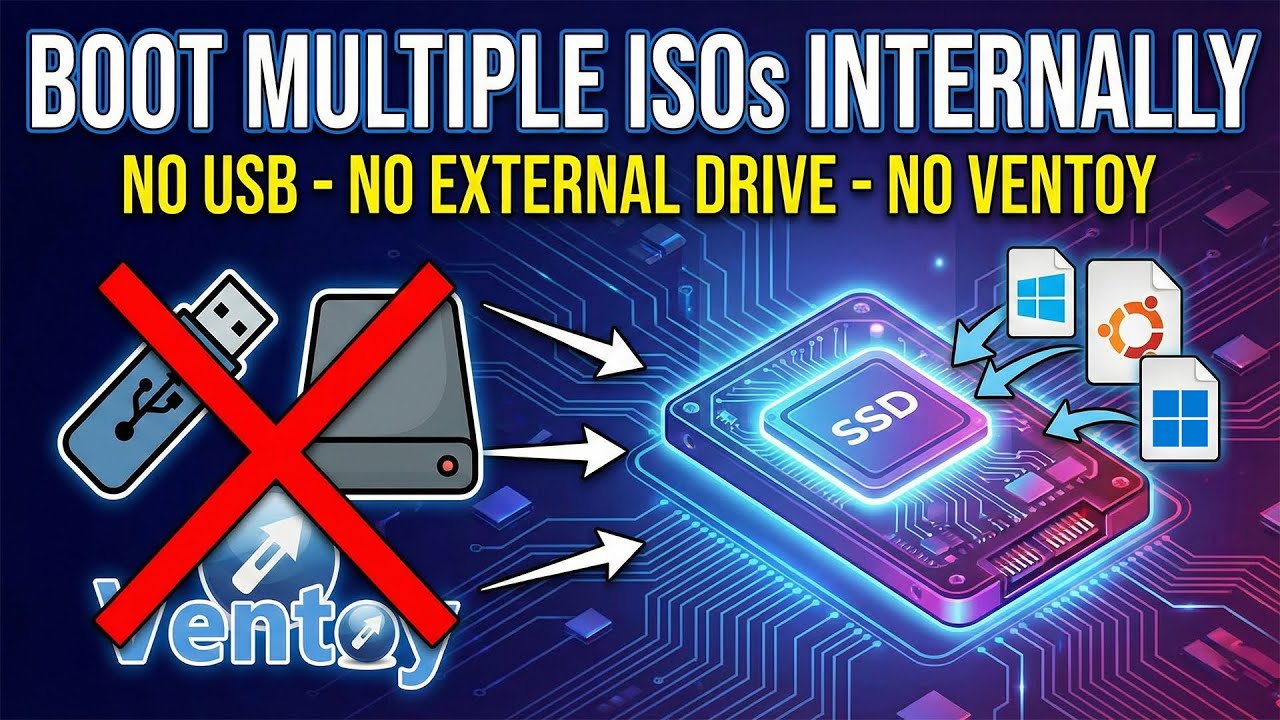
Today, I’ll show you a super useful trick: how to create a MultiBoot partition to run any ISO file (like WinPE or Windows 11 installers) directly from your internal hard drive, without needing a USB or external drive. This solution is incredibly convenient for testing custom Windows builds or having an emergency rescue tool ready on your PC.
Check out my detailed video tutorial right here:
Summary of the steps in the video:
Step 1: Shrink the Hard Drive to Create a Boot Partition (FAT32)
- Open Disk Management, right-click the largest partition, and select Shrink Volume by
1024 MB(about 1GB). - Right-click the unallocated space to create a New Simple Volume. Set the drive letter to Z, format it as FAT32, and name it
multiboot.
Step 2: Load GRUB and Configure with BOOTICE
- Download the BOOTICE and GRUB tools (links are in the video description).
- Extract the GRUB file. Rename
grub_fmx64.efitoboot.efi, and copy this file directly to drive Z. - Open BOOTICE. Go to the UEFI tab -> Edit boot entries -> Add. Select the
boot.efifile in drive Z, name your boot entry, make sure the boot partition is the FAT32 drive, and hit Save.
Step 3: Hide the Boot Partition for Data Protection
- Back in the BOOTICE main interface, switch to the Physical disk tab and click Parts Manage.
- Select drive Z and click Remove letter. Then, select GPT attributes and set it to Hide. This makes the boot partition invisible, protecting it from viruses or accidental deletion.
Step 4: Prepare the ISO Storage Folder
- Go to a data partition (like drive D or E). Note: Do not place this on drive C, because installing Windows will format and wipe drive C.
- Create a folder named
ISOand copy your Windows installer or WinPE ISO files into this folder.
Step 5: Boot and Enjoy!
- Restart your computer and press your Boot Menu key.
- Select the boot entry you just created. In the GRUB menu, simply locate your ISO folder, select your file, and choose “Boot from ISO”.
If you found this article and video helpful, please leave a Like, Share, and Subscribe to the channel for more exciting Windows tutorials. Have a good day!
Leave a Reply